
Resources
User guide
How to use Kriyastream, your AI Assistant PM, core actions, and team configuration. Jump to a section below or scroll the full guide.
Onboarding
Kriyastream helps hybrid teams plan projects with AI assistance. After you sign in, you land in your workspace with the sidebar for projects and admin areas, and for natural-language help across planning, estimation, and delivery.
Use the project list to open a project, switch views (list, Gantt, summary), and collaborate. Team leads configure capabilities, roles, locations, rate cards, and members so estimates and assignments stay aligned with how your organization works.
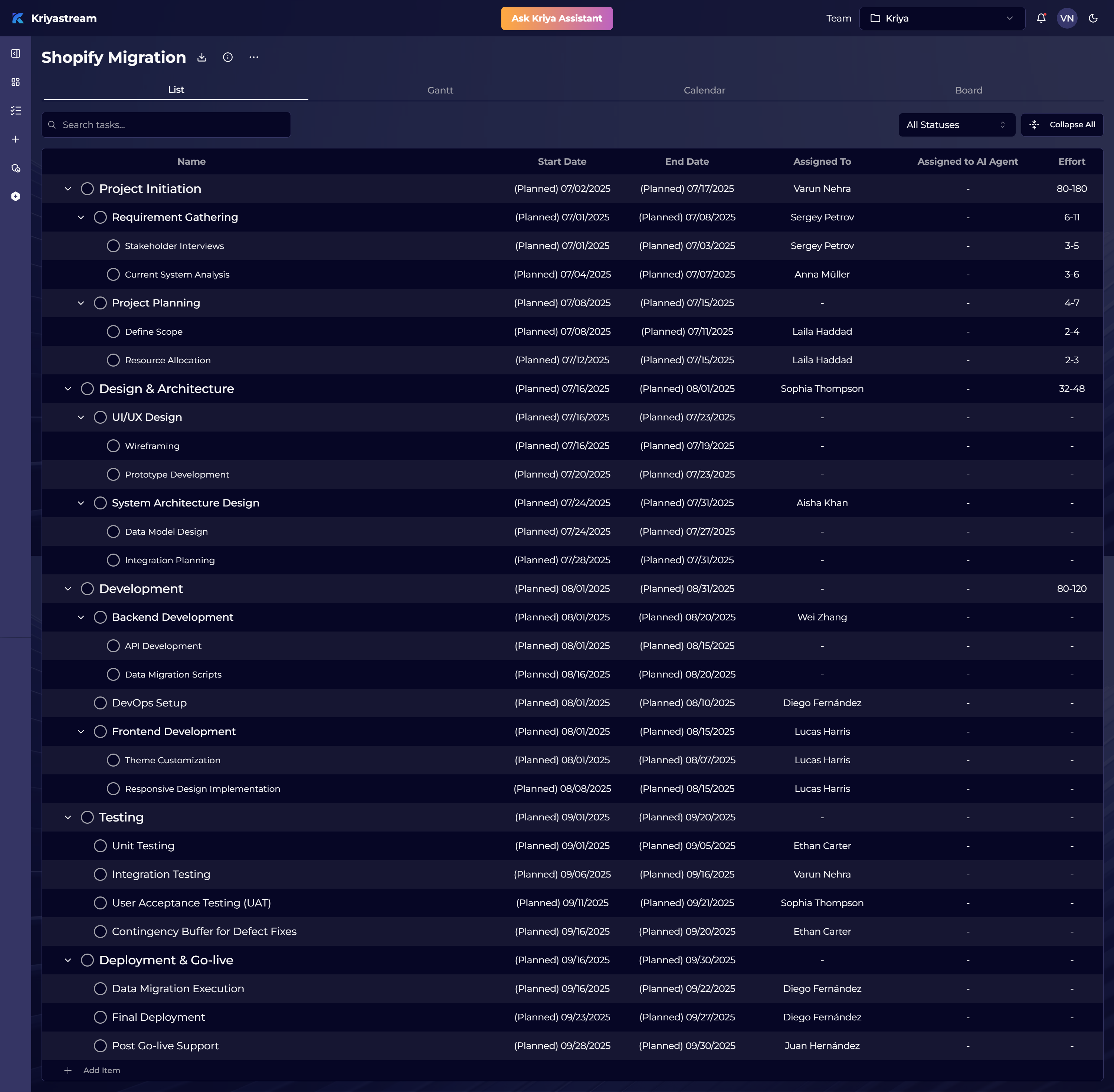
Ask Kriya
Open from the header to chat with your AI project assistant. Describe what you need in plain language; Kriya can reason over your workspace context where available.
Typical requests include:
- Create a new project work breakdown
- Analyze an existing project
- Run a project risk analysis
- Create or refine a work breakdown structure
- Prepare effort estimates
- Suggest or explain task assignment
- Optimization recommendations for scope, schedule, cost, and effort
- Manage capabilities, roles, and skills
- Manage rates in the rate card
- Analyze team member roles and assignment fit
- …and much more—iterate in chat until the plan matches your intent
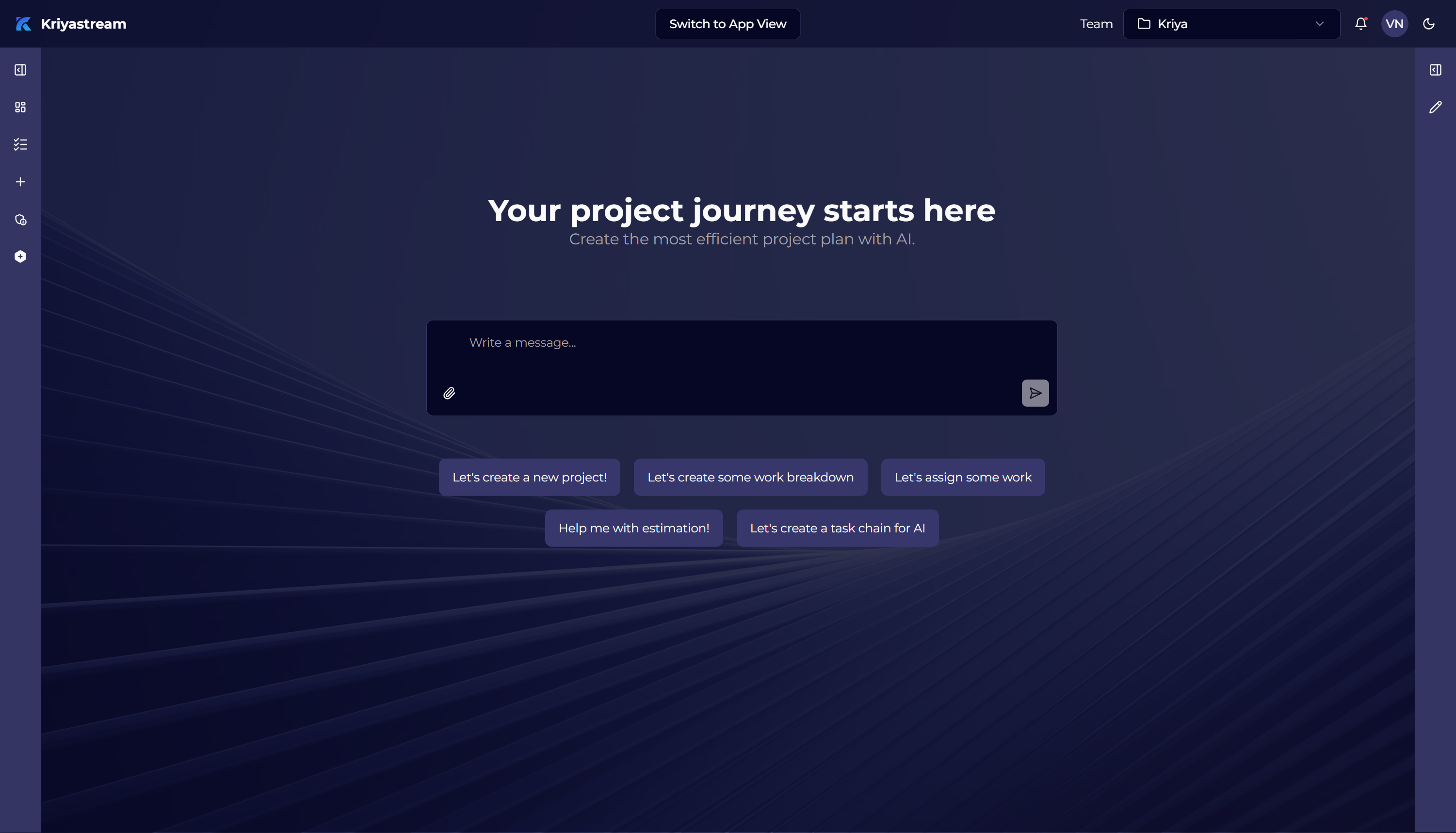
Actions available in the app
Beyond chat, you can drive work directly in the product UI:
- Create a new project
- Clone an existing project
- Clone from project templates
- Creating and editing the work breakdown
- Adding and refining estimates
- Assigning tasks to people or roles
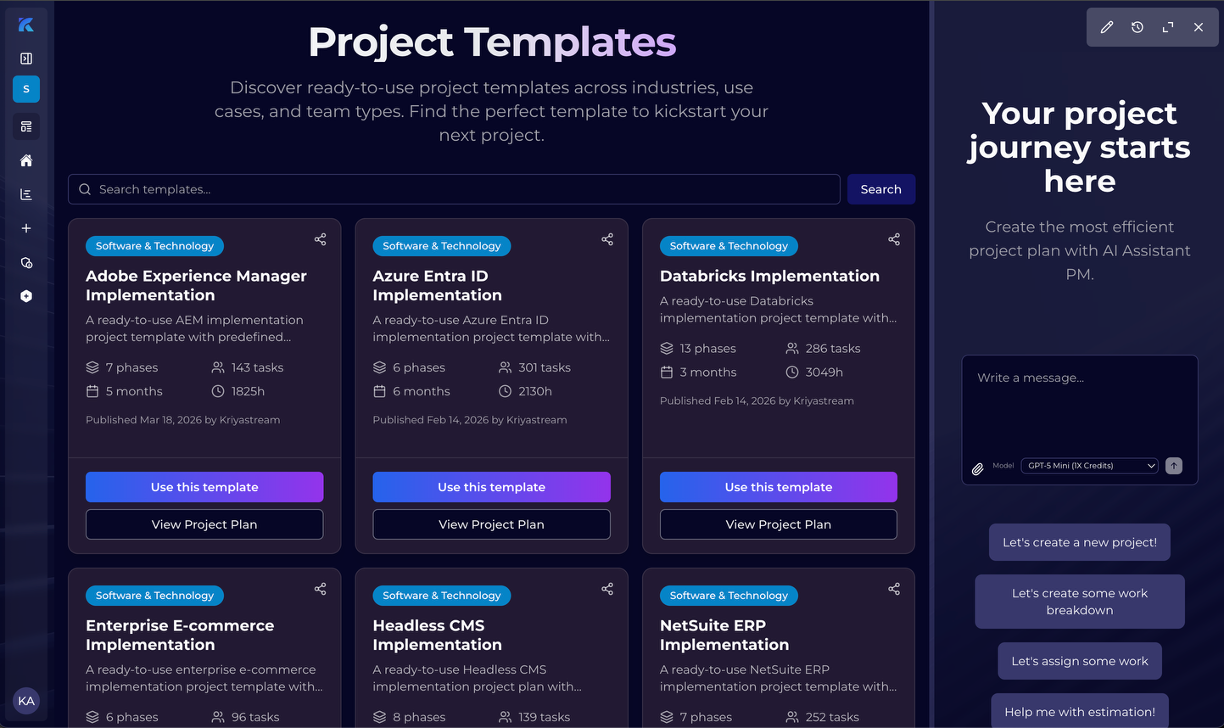
Project views
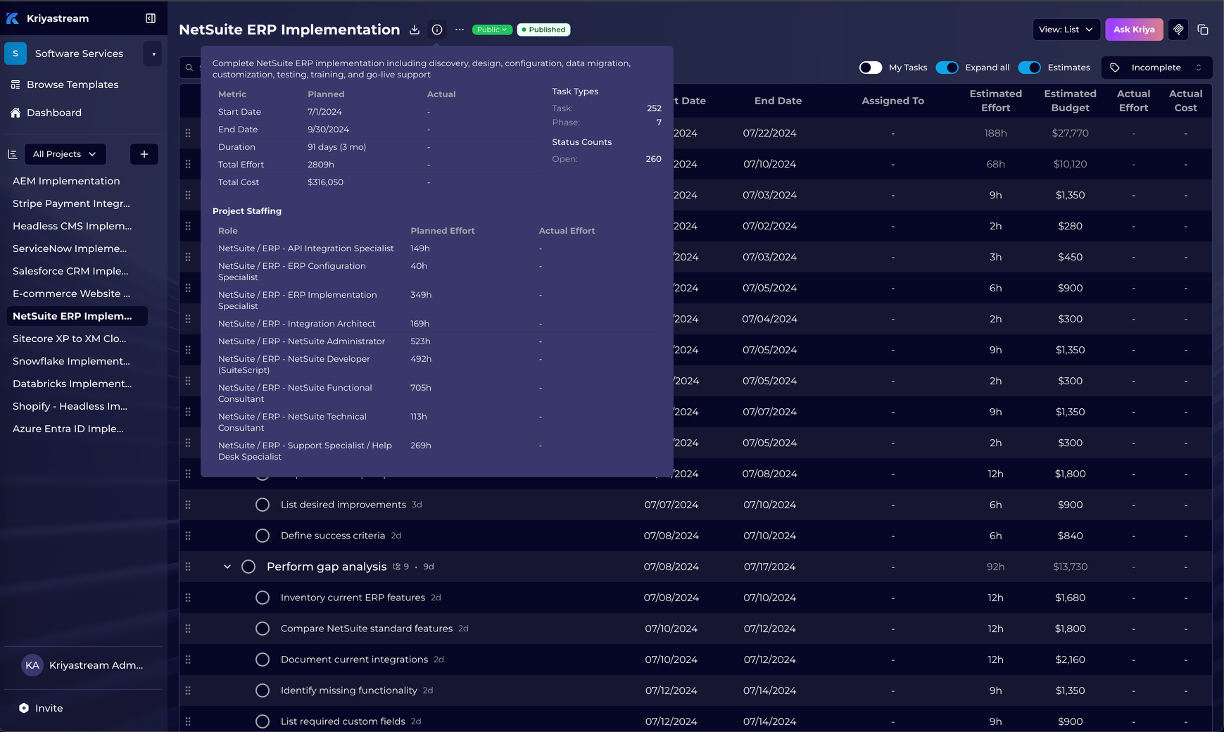
Within a project, switch views to match how you work: structured lists, timeline (Gantt), and summary rollups for dates, effort, cost, and staffing.
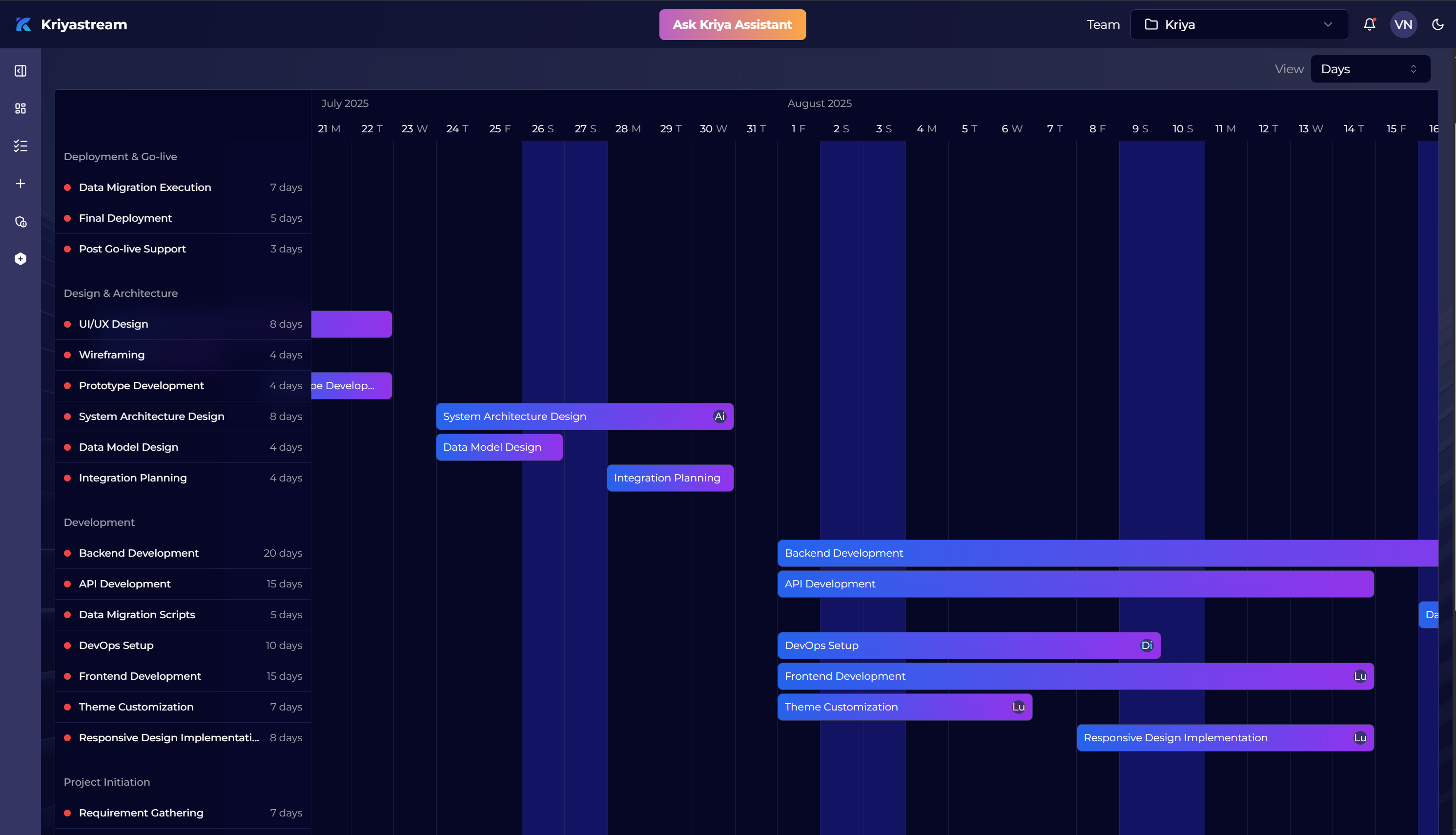
Summary & rollups
Use the project summary to see planned vs actual metrics, task counts, phases, and staffing in one place—useful for reviews and executive snapshots.
Team configuration
Administration settings define how Kriyastream estimates work and how people are represented. Configure these before or alongside your first projects so rates and roles stay consistent.
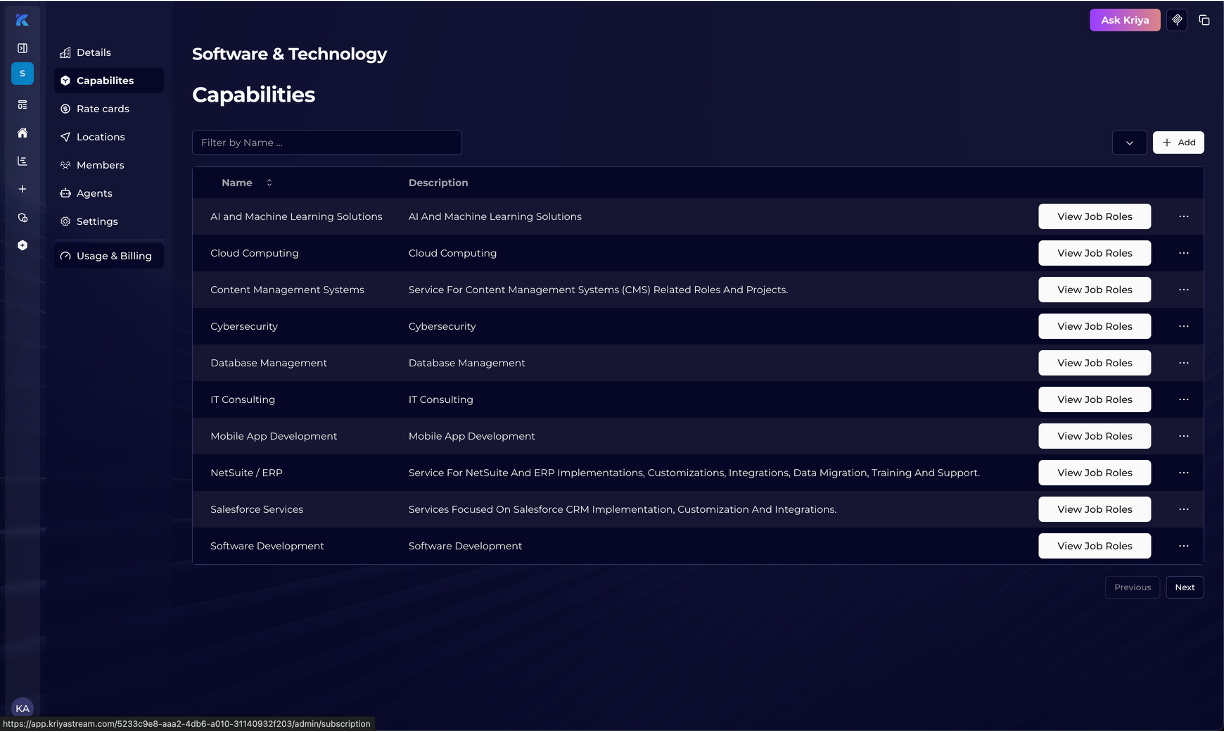
Capabilities, roles, and skills
Define what your organization can do and how roles map to skills. This foundation powers staffing suggestions, estimates, and assignment checks.
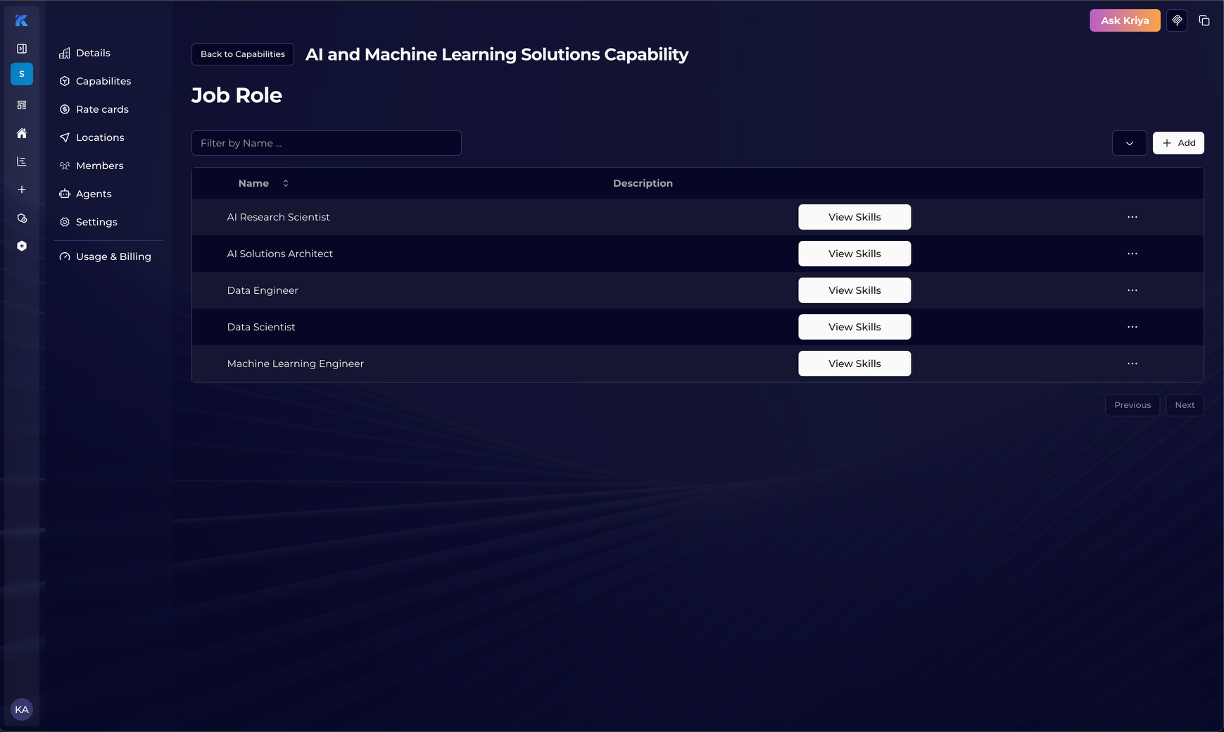
Roles
Maintain the role catalog used across job profiles, rate cards, and assignments.
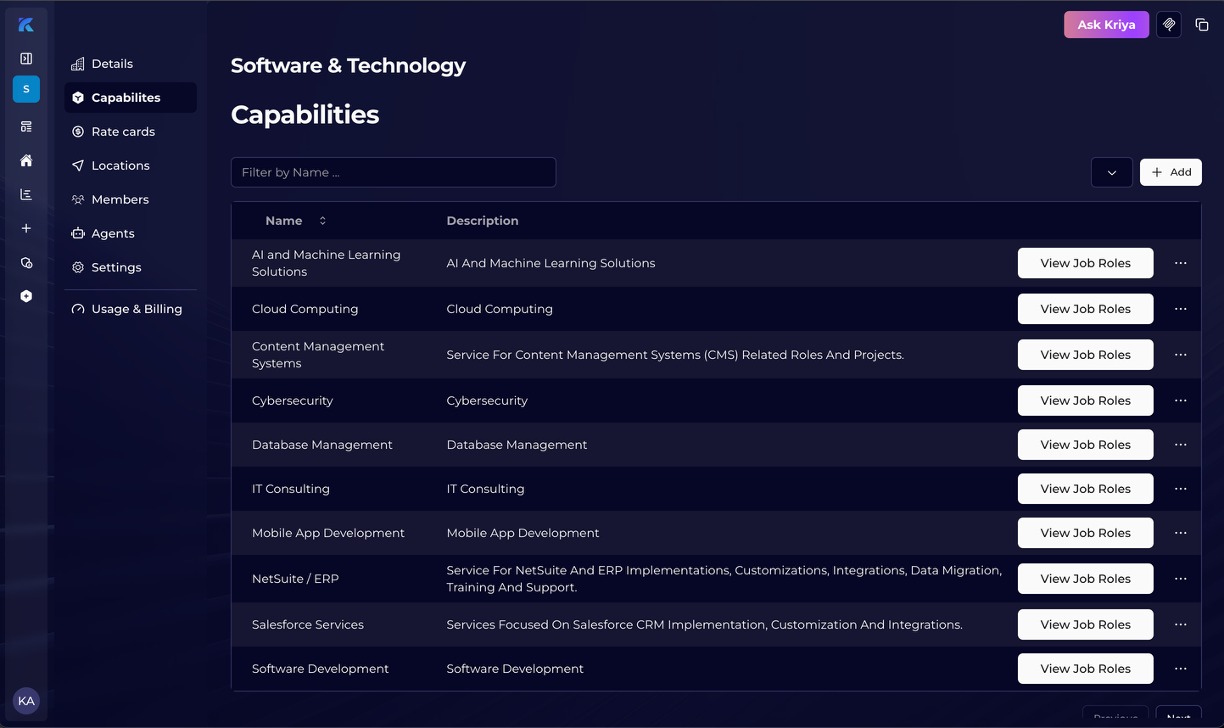
Capabilities in context
Capabilities can also be browsed where they surface in product workflows for alignment with delivery.
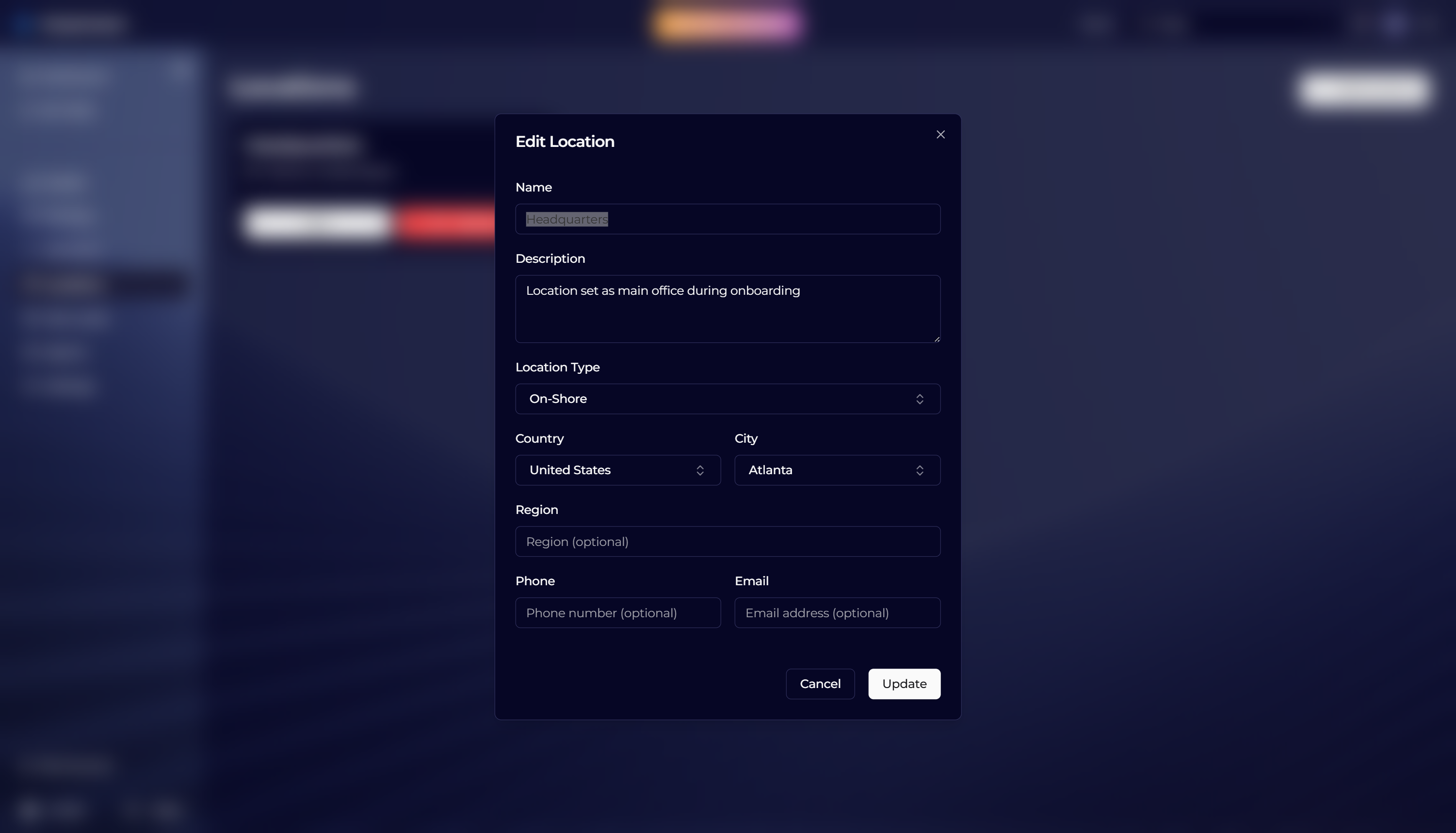
Locations
Add and edit locations for regional rates, staffing, or reporting where geography matters.
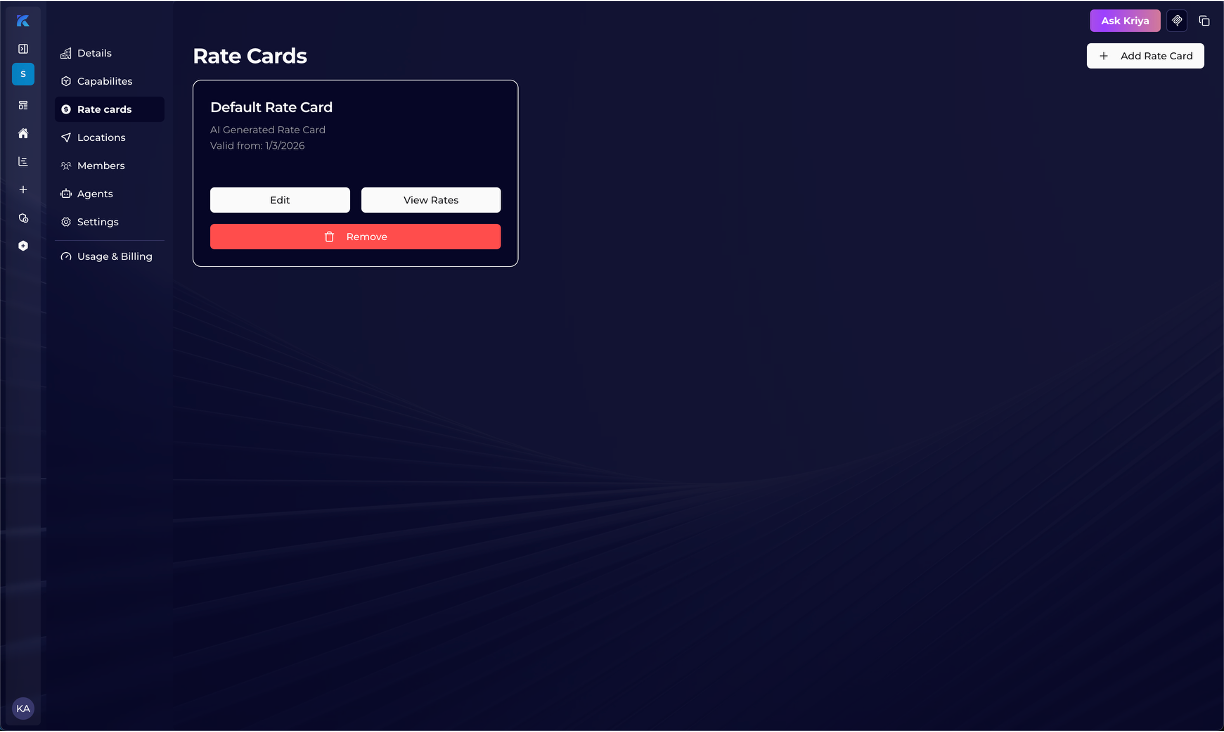
Rate cards and rates
Rate cards group bill or cost rates by role, location, or currency. Add individual rates and tie them to estimation and budget rollups.
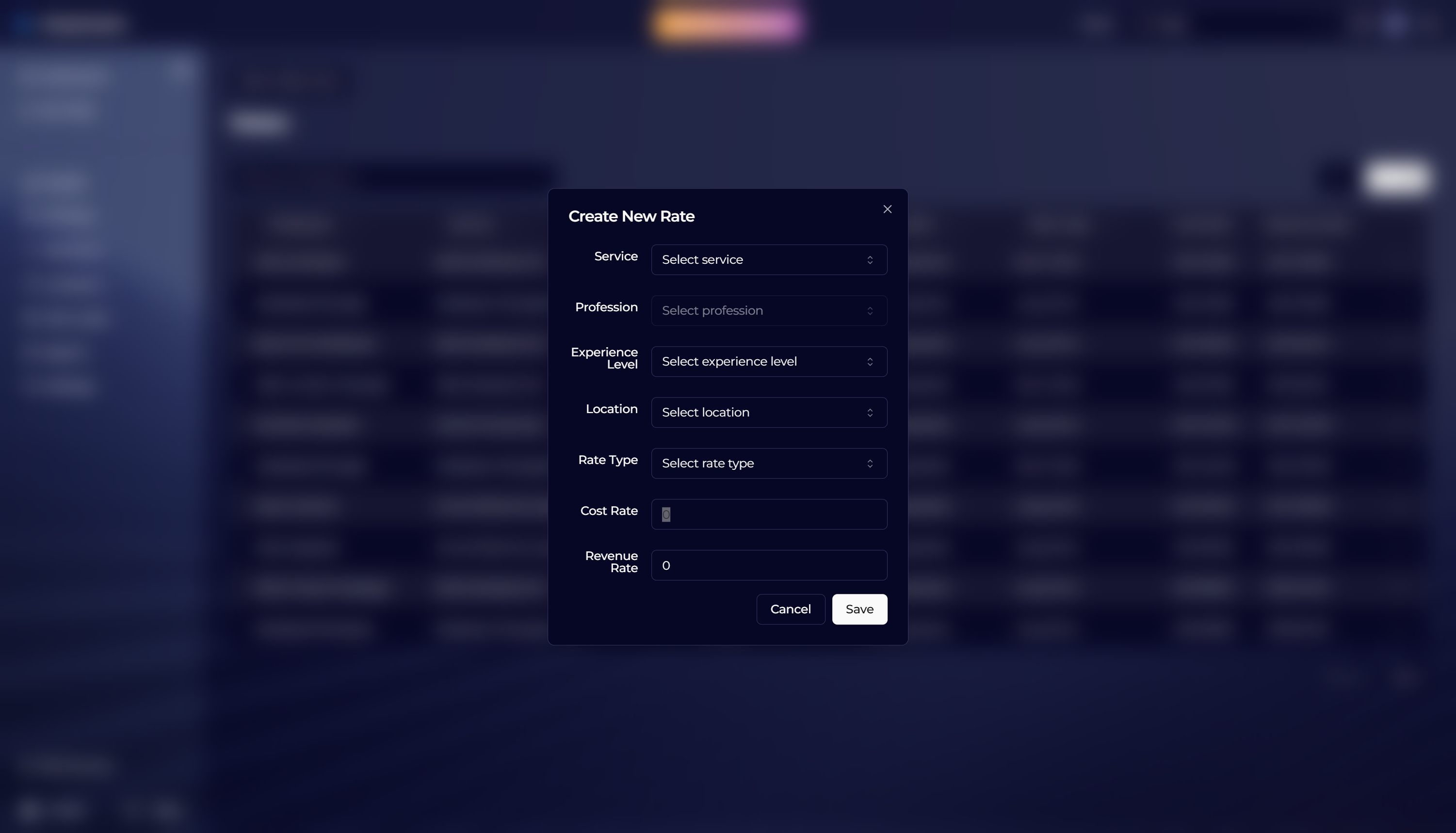
Adding a rate
Create or adjust rate line items so estimates reflect your current commercial model.
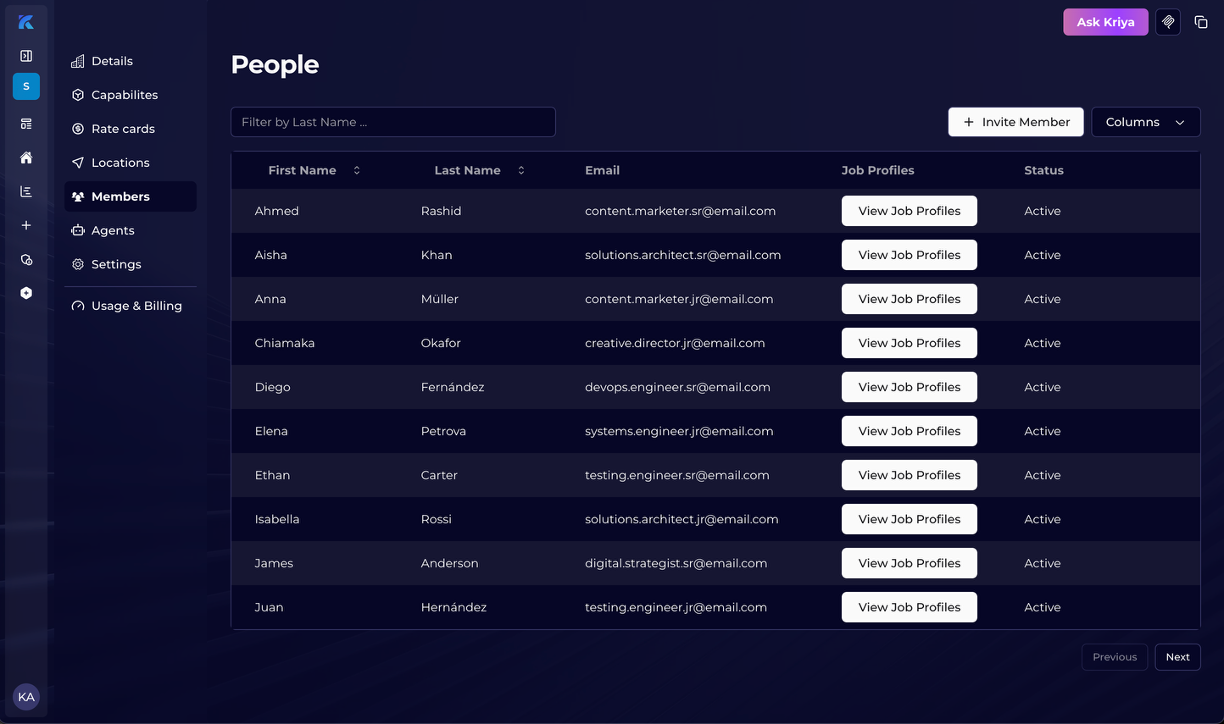
Member profile
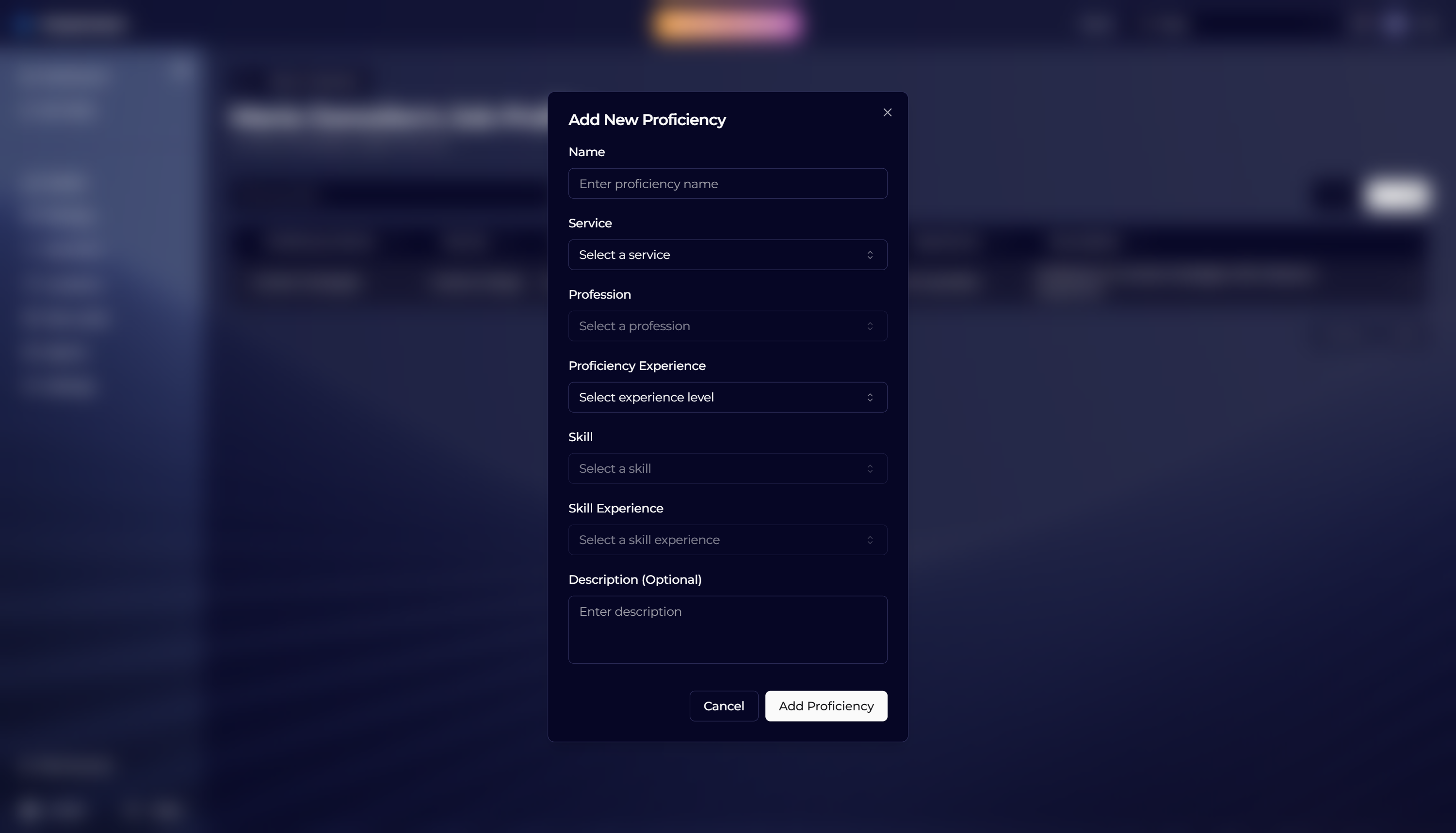
Invite users, manage job profiles, and align members with roles, skills, and locations so assignment and utilization views stay accurate.
- Invite teammates from admin
- Configure job profiles and role fit
- Review the members directory for your workspace
Job profiles
Job profiles connect people to roles, rates, and capability expectations used in planning.
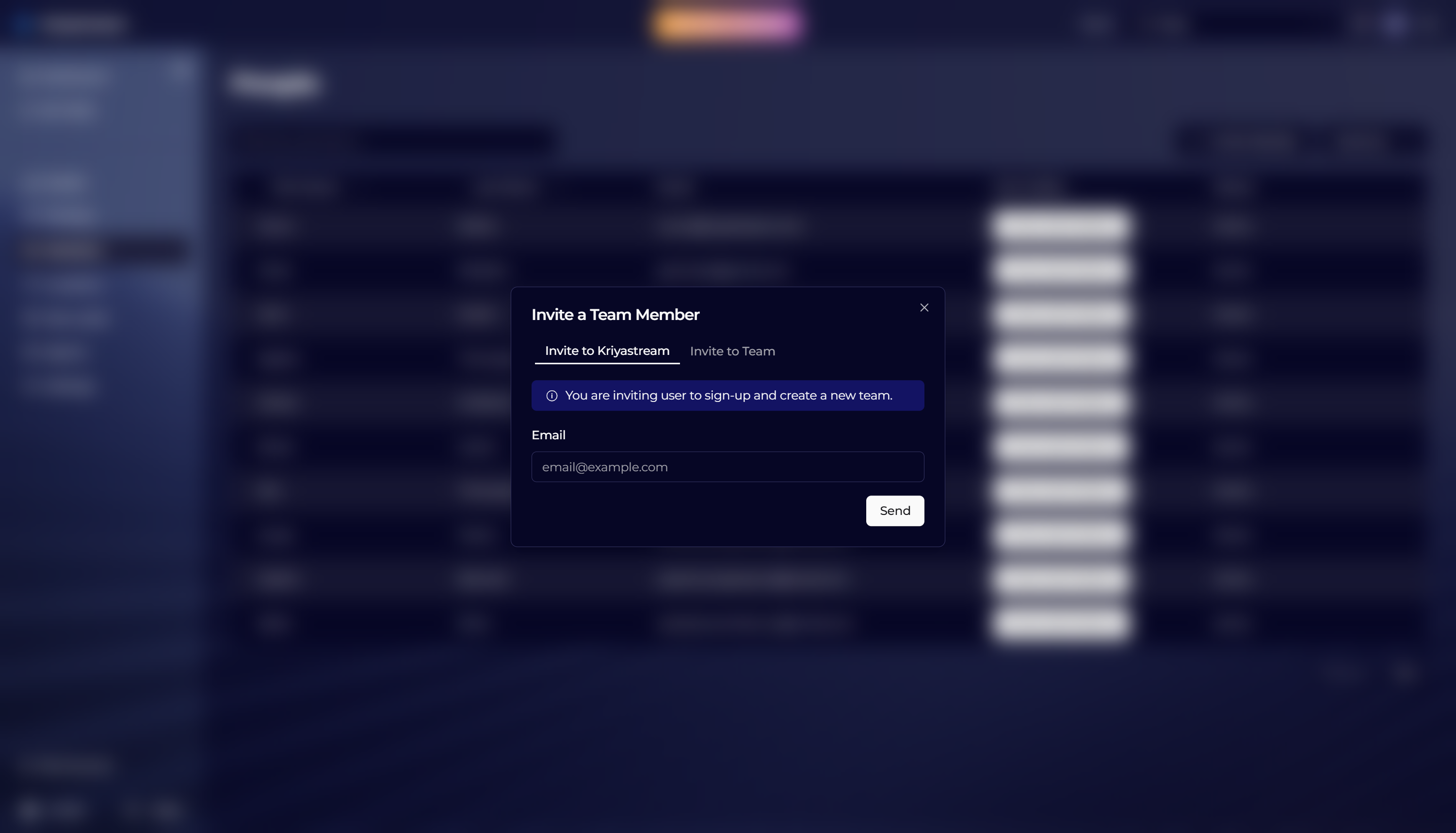
Inviting users
Send invitations so new members can join the workspace with the right access.
Usage and billing
Monitor consumption and billing for your workspace from the usage and billing area (availability varies by plan). Use it to track seats, usage limits, and invoices.
Settings
Workspace and project settings control defaults, integrations, and governance. Review settings when onboarding a new team or changing how projects are published and shared.